Free testing · paid purchasing is currently disabled
OPTI4.0ToolScan3D

FROM YOUR WORKSHOP TO A DIGITAL TOOL

Your tool.
Digitised.

A photo from your phone. Dimensions, recognition and a 3D tool model in one workflow.

Meet OPTI4.0 ToolScan3D.
Digitise tools and holders on iOS and Android.

ToolScan3D produces preliminary estimates from photographs, not exact measurement results or guaranteed accuracy. Estimation and calibration

◉ iOS◈ AndroidCAD-CAM Solutions
ToolScan3D produces preliminary estimates from photographs, not exact measurement results or guaranteed accuracy. Estimation and calibration
01Photo-based digitisation
02AI-assisted identification
033D and CAD/CAM export
04Shared company access

WHO IT HELPS

Real tools. Shared digital data.

From CAM programming to tool preparation: use the checked geometry of the assembly that is actually on your machine.

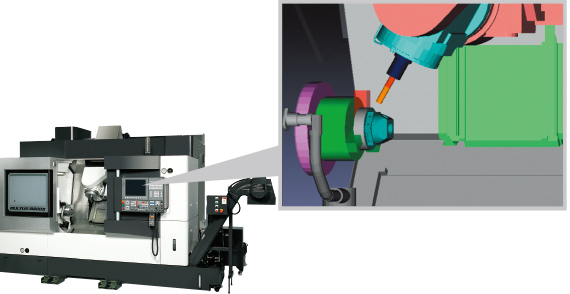
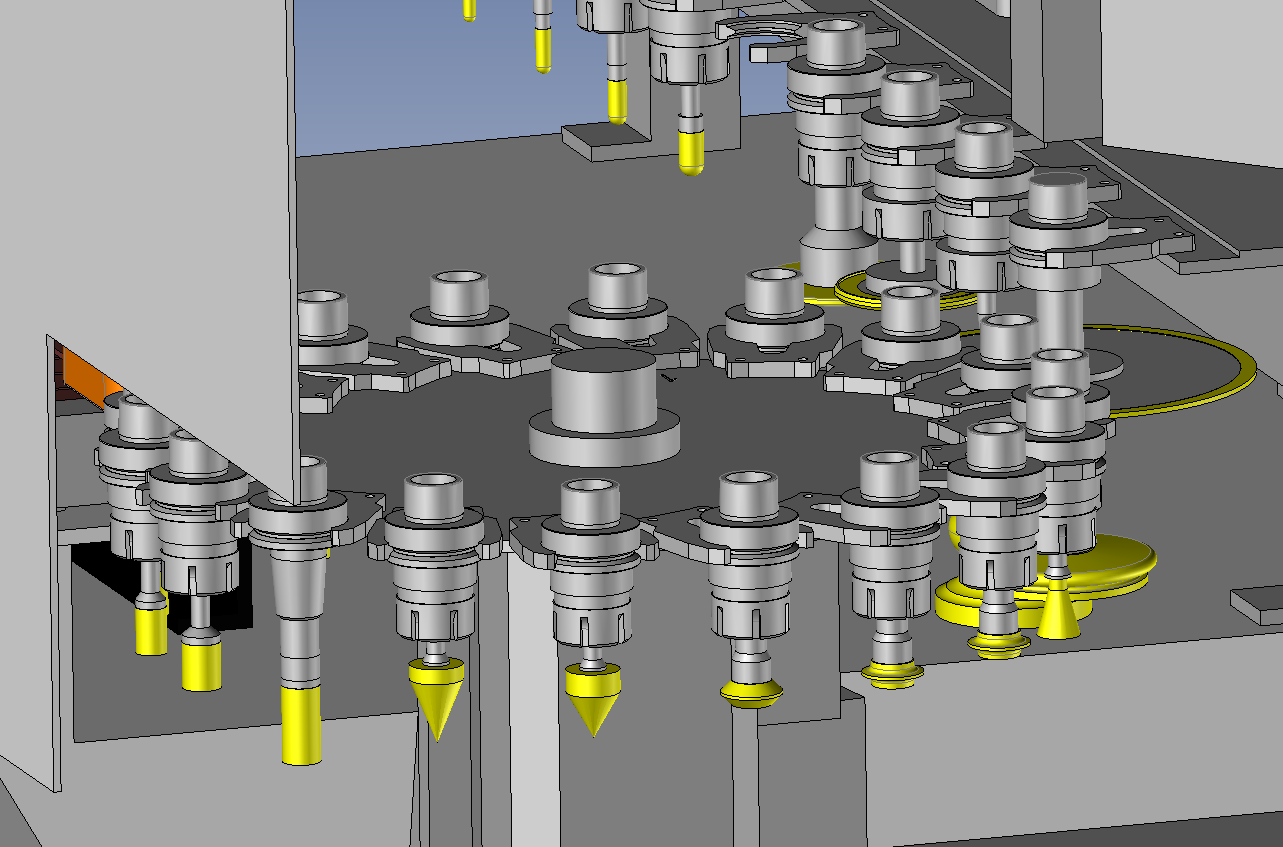
CAM machine simulation with a tool magazine

For CAM programmers

Bring your workshop tools into CAM

Load a checked 3D model of the tool and holder used on the machine into your CAM simulation. Its actual overhang and holder shape help you review clearance around the workpiece and fixtures.

Less manual modelling. A better prepared simulation.

Okuma machine and CAS collision avoidance view
Source: okuma.co.jp

For CNC programmers and operators

Geometry for the controller’s collision checks

Prepare tool geometry for supported controllers with the appropriate CNC module. Compatibility depends on the controller, its collision-checking options and the enabled export adapter.

Use checked assembly data in the machine’s own verification workflow.

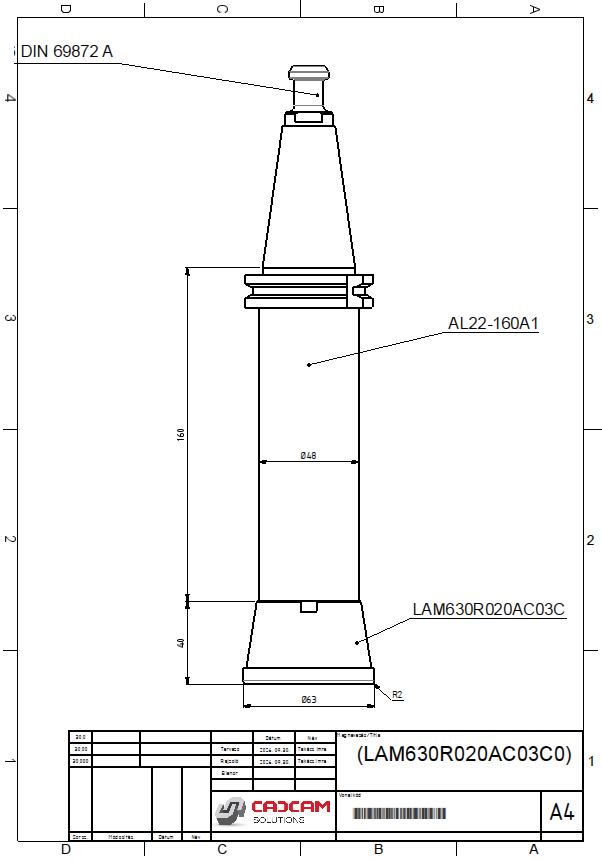
Dimensioned assembly drawing of a tool and holder

For tool preparation and workshop teams

Clear assembly drawings at the machine

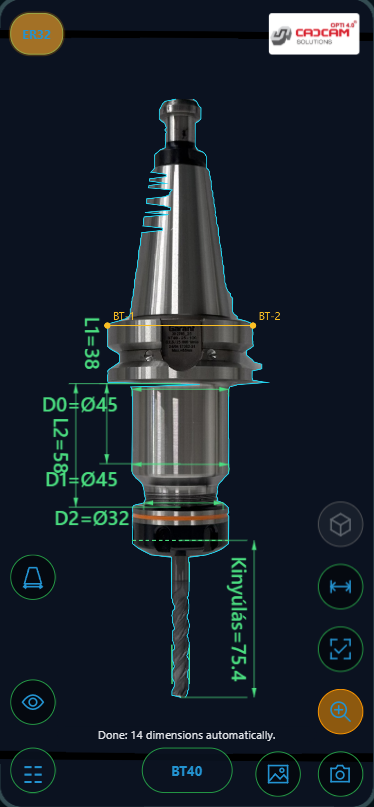
Create a dimensioned drawing of the tool and holder. Clearly recorded diameters, overhang and component choices help with tool preparation, handover and repeat setups.

One shared reference from preparation to the next shift.

Check dimensions, reference positions and exported geometry in the target system before collision checking. Photo-based models are preliminary estimates. ToolScan3D supplies geometry; collision checking is performed by your CAM or CNC system.

Illustrations of the three workflows.

Try the workflow

THE WORKFLOW

From reference sheet to 3D tool

Prepare the photo, review the estimates and build a digital tool assembly.

Camera calibration
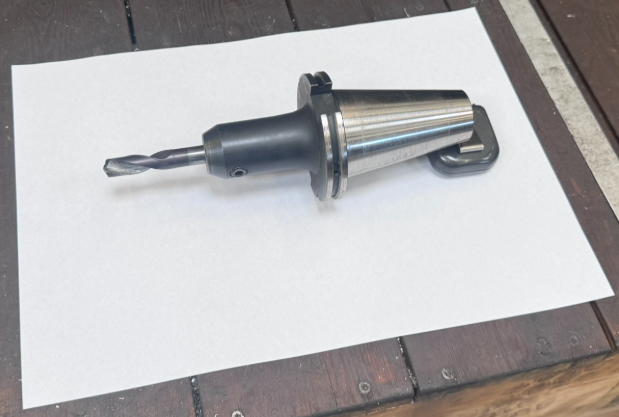
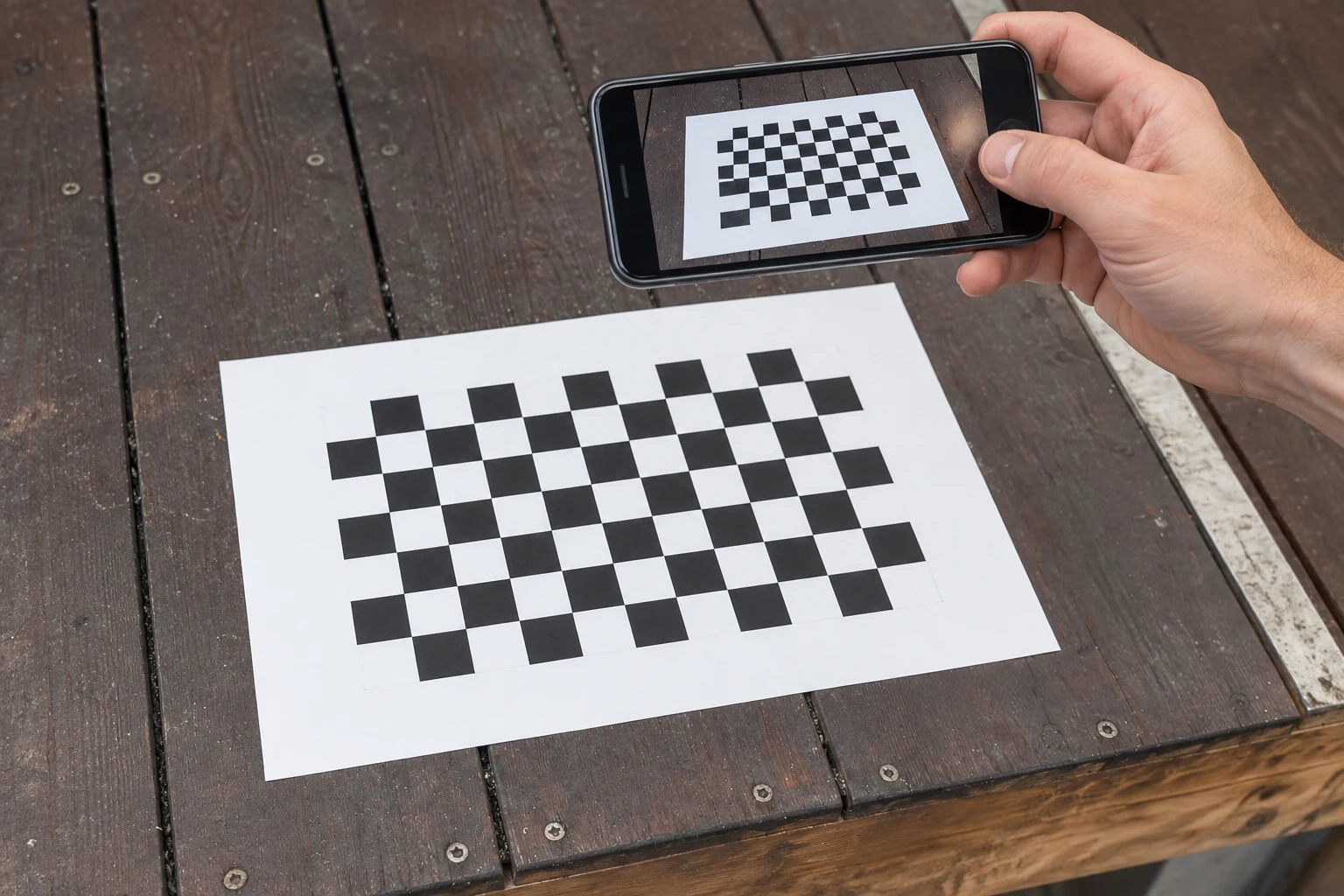
Lay the reference sheet flat
  1. 01

    Lay the reference sheet flat

    Place a clean reference sheet on a flat surface. Select its actual format and check its dimensions.

  2. 02

    Align the tool on supports

    Place the tool on the sheet. Use supports where possible to keep its axis horizontal and parallel to the sheet plane.

Select the machine interface
  1. 03

    Select the machine interface

    Specify the machine-side mounting system, such as SK40, BT40 or HSK. Its known geometry provides another reference.

  2. 04

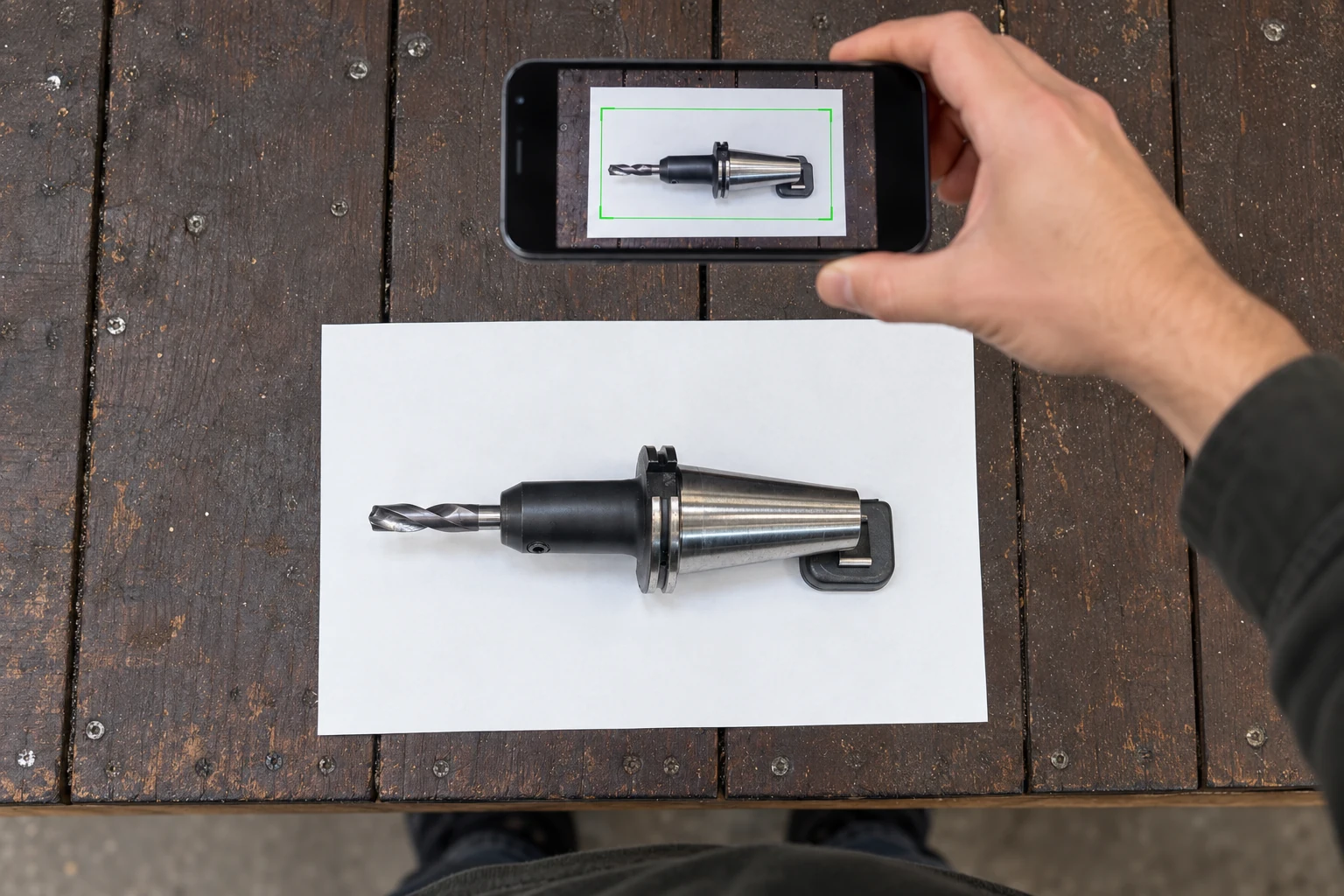
    Take the photo from 600–800 mm

    Keep the camera above the tool. Choose the optical lens or zoom that fits the assembly best within the green frame; avoid digital zoom.

Check and correct the dimensions
  1. 05

    Check and correct the dimensions

    Review the estimated dimensions and correct them using independent measurements. A photo does not guarantee dimensional accuracy.

  2. 06

    Confirm the toolholding type

    If recognition is missing or incorrect, manually select the toolholding type, such as ER32 or ER40. This differs from the machine-side interface.

  3. 07

    Refine the cutting tool

    Check the cutting-tool type and correct its diameter, cutting length and other relevant parameters.

Create the 3D assembly
  1. 08

    Create the 3D assembly

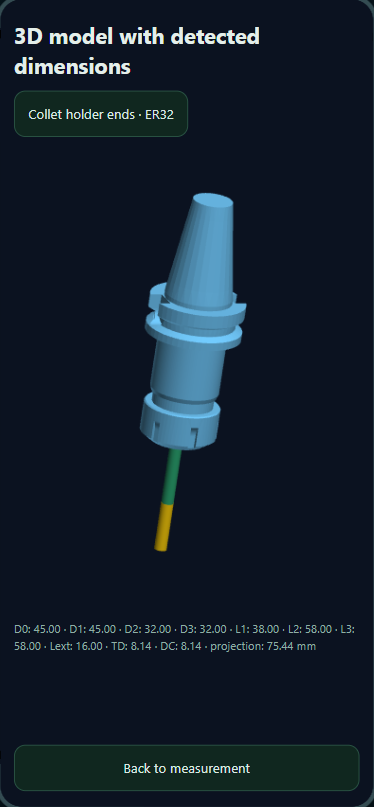
    Build the complete toolholder and cutting-tool model from the reviewed parameters. Check the assembly before use.

  2. 09

    Export STL and STEP

    The base licence includes STL and STEP model generation. Independently verify the exported geometry before machining.

  3. 10

    Use optional integrations

    Optional modules provide GTC, TopSolid and supported CNC outputs, such as MAZAK and OKUMA. Available outputs follow the enabled modules.

The images illustrate the workflow; they are not evidence of automatic recognition or certified measurement accuracy.

Try the interactive demo

OPTI4.0 TOOLSCAN3D

Camera calibration

Calibrate the camera using calibration sheets to improve the estimation. Use the same camera, lens and zoom for calibration and measurement.

  1. 01

    Prepare the calibration sheets

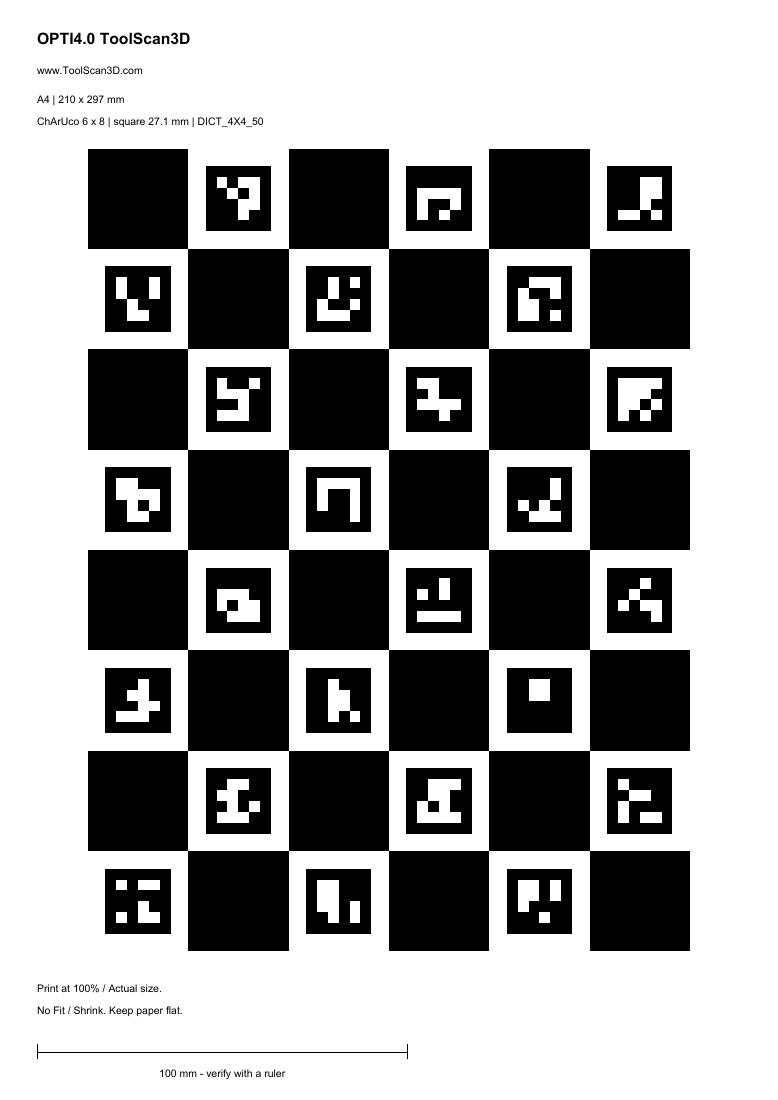
    Print at 100% actual size without fit-to-page scaling. Check the printed reference dimensions and place the sheets flat.

  2. 02

    Capture the calibration pattern

    Following the app instructions, photograph the calibration sheets across the image area. Keep the camera, lens and zoom unchanged and use even lighting.

  3. 03

    Apply the matching profile

    Use the calibration profile matching the device, camera, lens, image resolution and zoom. Verify the result against independent measurements.

Calibration can improve estimates, but does not guarantee accuracy or replace a calibrated measuring instrument.

Download calibration sheets

A4 · Letter · A3 · A5 · A6 · A2 · Legal · Tabloid / Ledger · Statement · Executive · Folio · Oficio (Mexico) · ISO B4 · ISO B5 · JIS B4 · JIS B5 · Photo 4 × 6 in

OPTI4.0 TOOLSCAN3D

Your tools. In three dimensions.

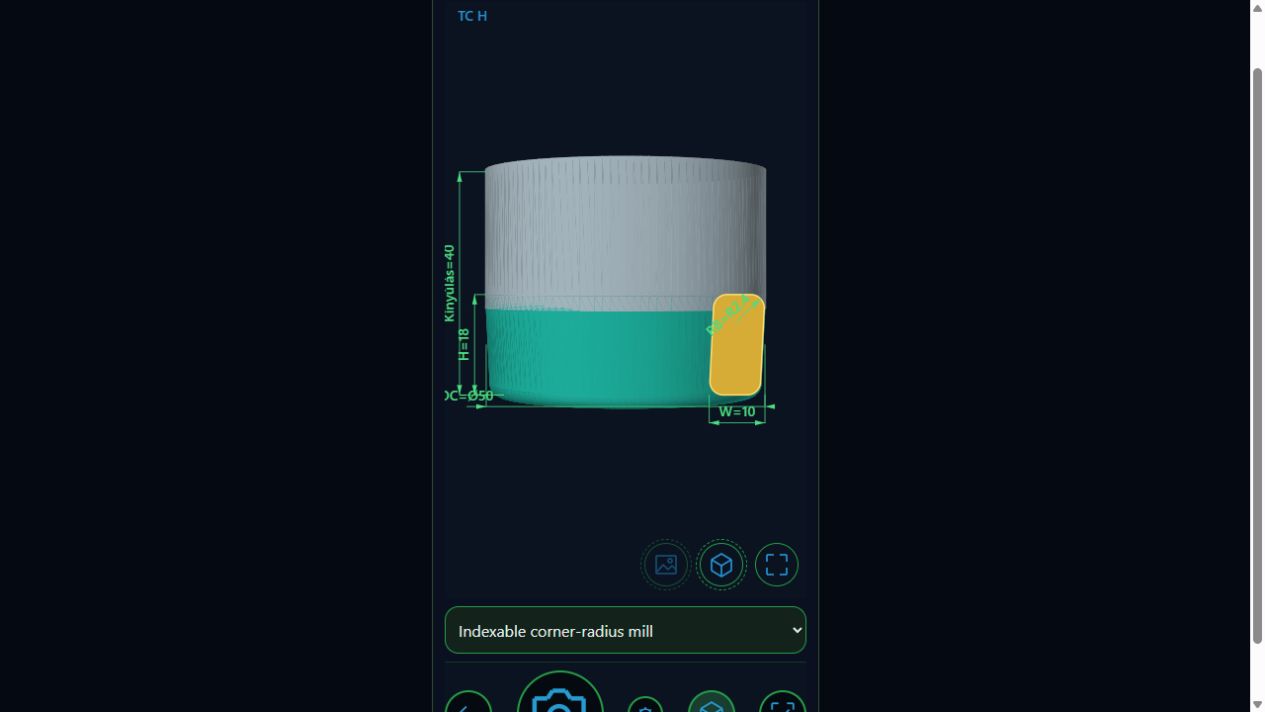
Explore the active Control catalogue and try dimensions here on the page.

ToolScan3D ● ● ●
ToolScan3D screen: 3D model and dimensions of an indexable milling tool
3D VIEW ◇
MOBILE WORKFLOW / iOS + ANDROID
↗
Actual app viewModel and dimensions on one screen

MORE THAN A TOOL PHOTO

The details
come together.

The tool, holder and their data in one digital workflow.

01

AI recognition and catalogue data

Process tool markings, manufacturer identifiers and component data, with a separately rechargeable AI balance.

02

Tool and holder together

Type library, holder references and assembly drawings dimensioned from the holder datum.

03

Data for your next step

STL and STEP in the base package. Optional GTC and controller-specific CNC exports.

Build your own toolkit ↗

MODULAR TOOLKIT

Built for your workshop.

A base package with focused add-ons.
Company purchasing, assignable seats,
managed centrally in Control.

BASE PACKAGE

ToolScan3D

The foundation of your digital workflow.

  • Photo-based dimension estimation
  • Tool and holder management
  • 3D tool model
  • STL and STEP export
  • Assembly drawing
Try the exports

CNC: up to 3 trial exports per module, 10 in total. GTC: 3 separate trial exports.

Base licence and modules ↗Annual subscription, per user seat.
OPTIONAL ADD-ONS

Purchased modules require the appropriate base licence. Machine-specific exports must also be verified on your own controller.

OPTI4.0 TOOLSCAN3D

Try ToolScan3D with us

Apply for free testing while we complete the testing phase. We will contact you about access; no payment is requested.

Photo-based estimates. Verify before use.

Estimation accuracy is affected by the actual dimensions and flatness of the reference sheet, the selected sheet format, camera and lens distortion, perspective, lighting and shadows in the photograph.

Calibrating the camera using the application's calibration sheets can improve the estimate. Use the correct print scale and follow the calibration instructions. Calibration does not eliminate every source of error and does not guarantee accuracy.

To the maximum extent permitted by mandatory law, CAD-CAM Solutions Kft. excludes financial liability for losses arising from use of the software's estimates, models or outputs. Liability that cannot lawfully be excluded remains unaffected.

Estimation and calibration

ONE TEAM. ONE CONTROL.

Your company buys.
Your team gets to work.

Licences are managed by the company. Colleagues sign in with their own accounts and use their assigned access.

Open company Control ↗
ToolScan3D COMPANY LICENCESEXAMPLE
10 purchased seats
3 assigned7 available seats
Seats can be released and reassigned.
01

Company Admin

Purchase licences and invite colleagues. Assign and release existing seats, and manage your company’s access.

02

User

Personal sign-in with assigned modules. Colleagues do not need to buy licences already provided by their company.

03

One account system

Your company uses the existing Control system. Manage ToolScan3D and other supported software in one place.

FREQUENTLY ASKED QUESTIONS

What you should
know.

Which phones can I use?+

ToolScan3D is being developed for iOS and Android. Available release and store links appear under downloads; public store availability is shown only with verified links.

Do STL and STEP cost extra?+

STL and STEP export are included in the base package. CNC modules, GTC export and AI top-ups are handled separately.

What if the company buys ten licences?+

The company admin can assign ten seats to colleagues, revoke a seat and reassign it. Base-licence and add-on permissions are tracked separately.

What is AI credit used for?+

It covers AI image analysis and identification usage. Buying an export module does not include unlimited AI use.

How can a colleague register?+

Control uses invitation-based registration. The company admin invites a colleague, who completes registration through the link received. You can also contact us below for company access.

BRING A DIGITAL MINDSET TO YOUR WORKSHOP

Start with your phone.

iOS and Android access with one Control account.

Request release access through Control or contact us. A public store link is not configured yet.

DEVELOPER AND CONTACT

CAD-CAM Solutions

Company rollout, module selection
and access requests.

Contact us ↗Accept invitation ↗

DEVELOPER AND CONTACT

Let’s talk about your workshop.

Questions about ToolScan3D, company access or module selection? Write to us.

Send an email
CAD-CAM Solutions Kft.info@cadcamsolutions.hu8000 Székesfehérvár
Farkasvermi út 60.
cadcamsolutions.hu ↗

OPTI4.0 TOOLSCAN3D

Documents and licences

Read the terms, privacy information, estimation notes and third-party notices here on the page.

Terms of use
Privacy notice
Estimation and calibration
Third-party licences

Mobile folder

Sample photos · SK40 / BT40 / SK50

Demo app